CWCShowcase
User Management
This module is used to manage volunteer access to the application. Access is restricted to users assigned the User Manager role.
1. Accessing User Management
- From the Main Menu, select the Users menu option.
- The application will open directly to the Users list.
2. Adding a New User
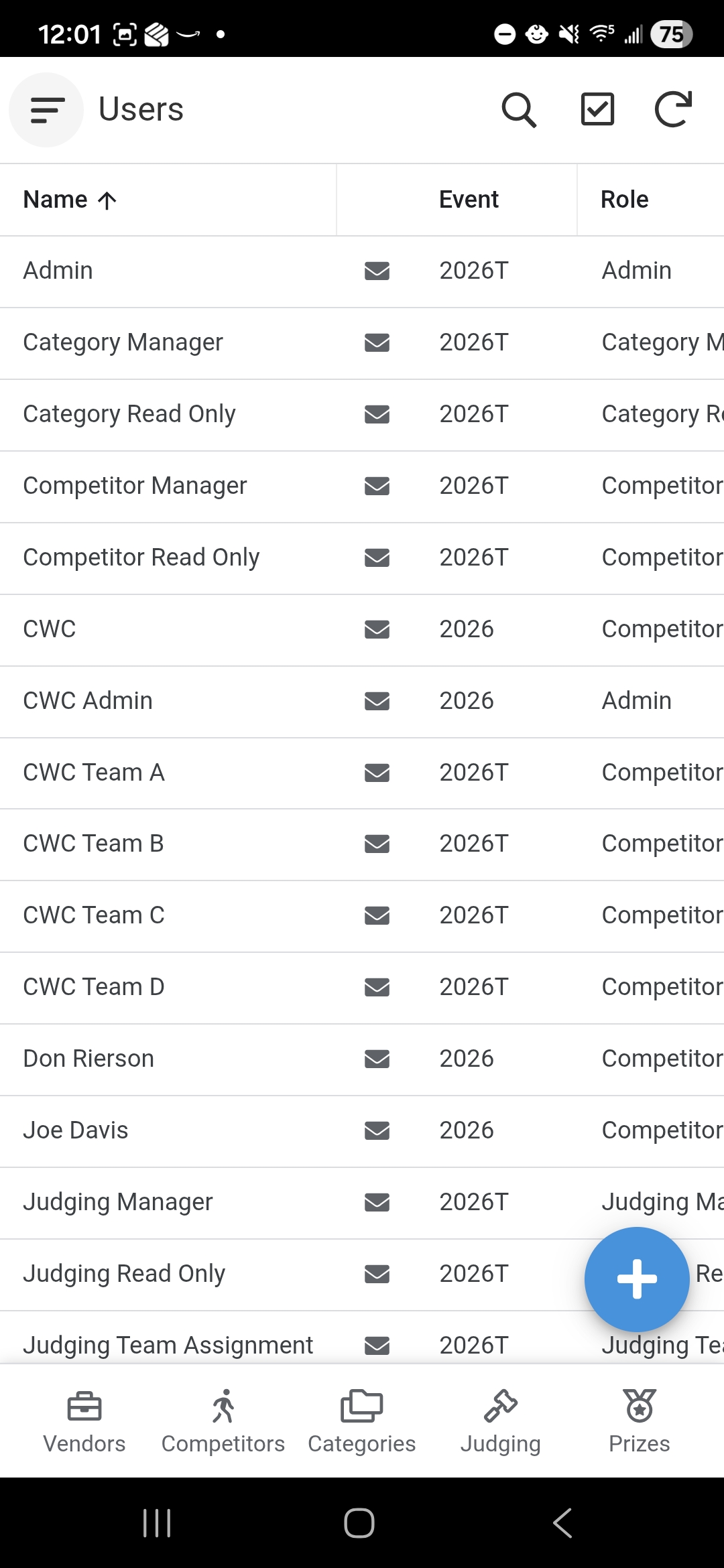
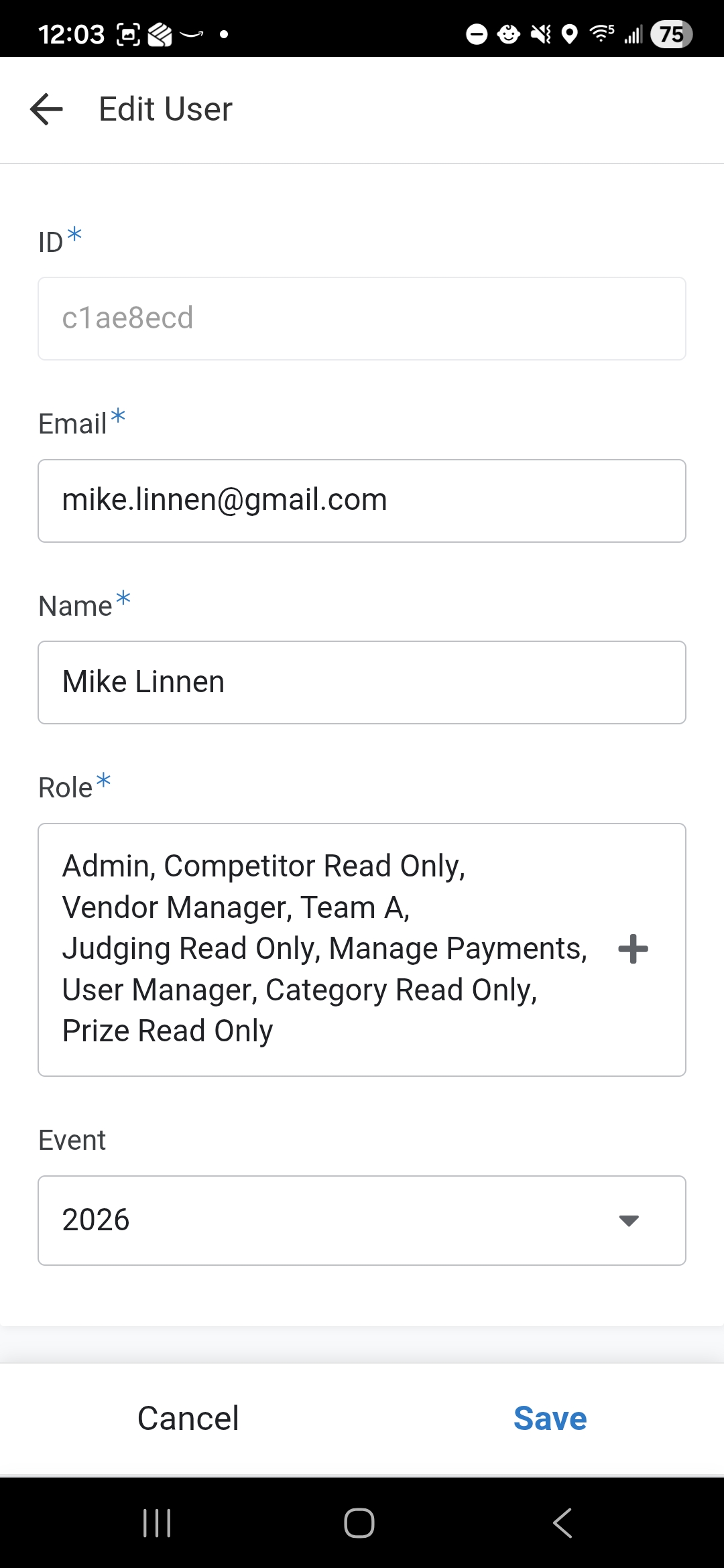
To grant a new volunteer access, click the Add button and enter the following:
- Email: Must be a valid email address.
- Name: The volunteer’s full name.
- Role: Select the appropriate role (e.g., Check-In, Judging, Finance). Note that permissions are tied to these roles.
-
Event: Assign the user to the current competition event.
2.1 Copying an Existing User
To make adding a new user easier, you can copy an existing user who already has the roles you want to assign.
- Locate a user in the Users list with the desired roles.
-
Click the Row to open the Detail View.
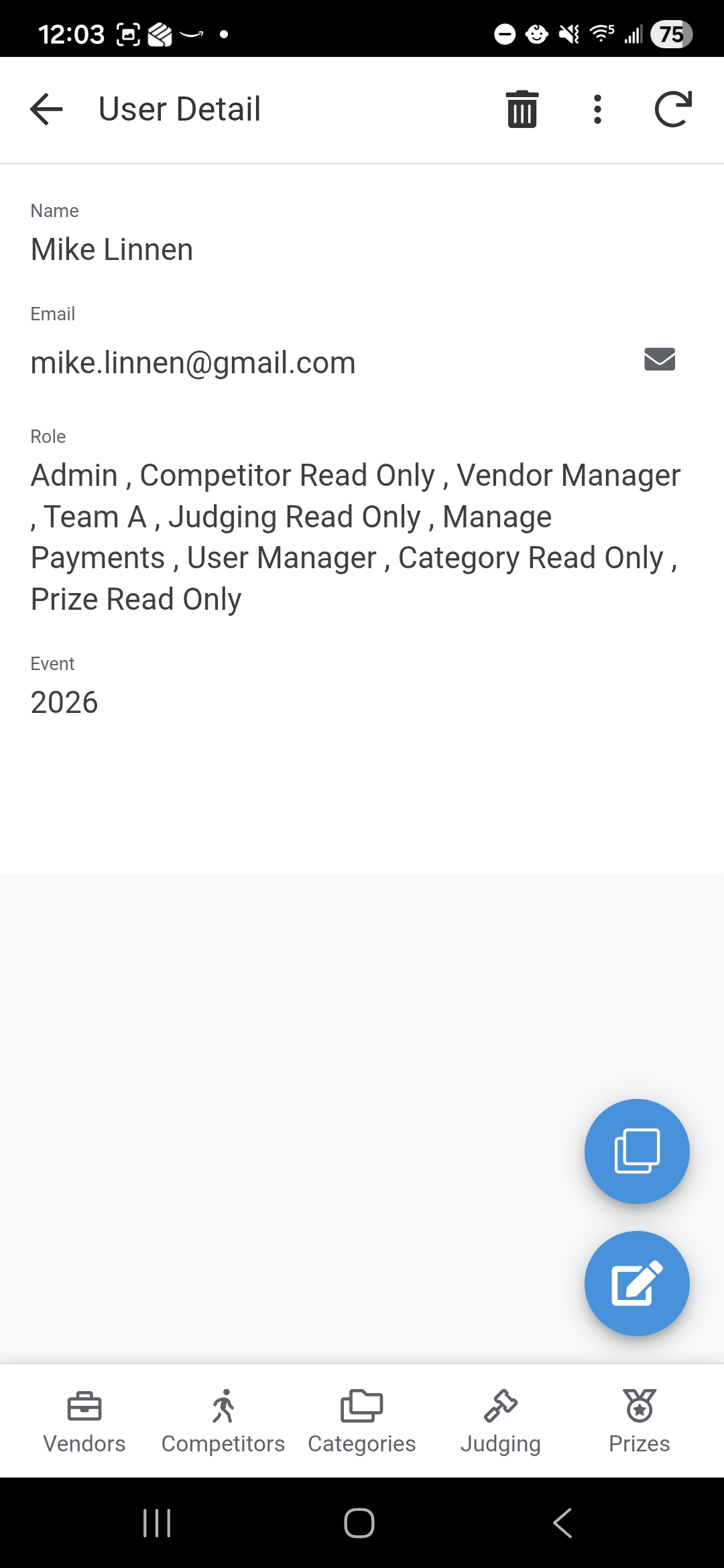
- Click the Copy Icon (typically located in the top header or as a primary action).
- A new form will open with the Roles and Event already filled in.
- Update the Email and Name for the new volunteer.
- Click Save to create the new account.
Important: Google Account & AppSheet Access
The application uses Google for authentication. Please keep the following in mind:
- Google Account: The email address provided must be associated with a Google Account.
- Account Setup: If the volunteer does not have a Google account, they must create one before they can log in.
- AppSheet Sharing: Adding a user to this module does not automatically grant them access to the app. An Administrator must also share the AppSheet application with the user’s email address through the AppSheet editor.
- Passwords: The application does not manage passwords. Users manage their own password and security settings directly through their Google Account.
3. Managing Roles
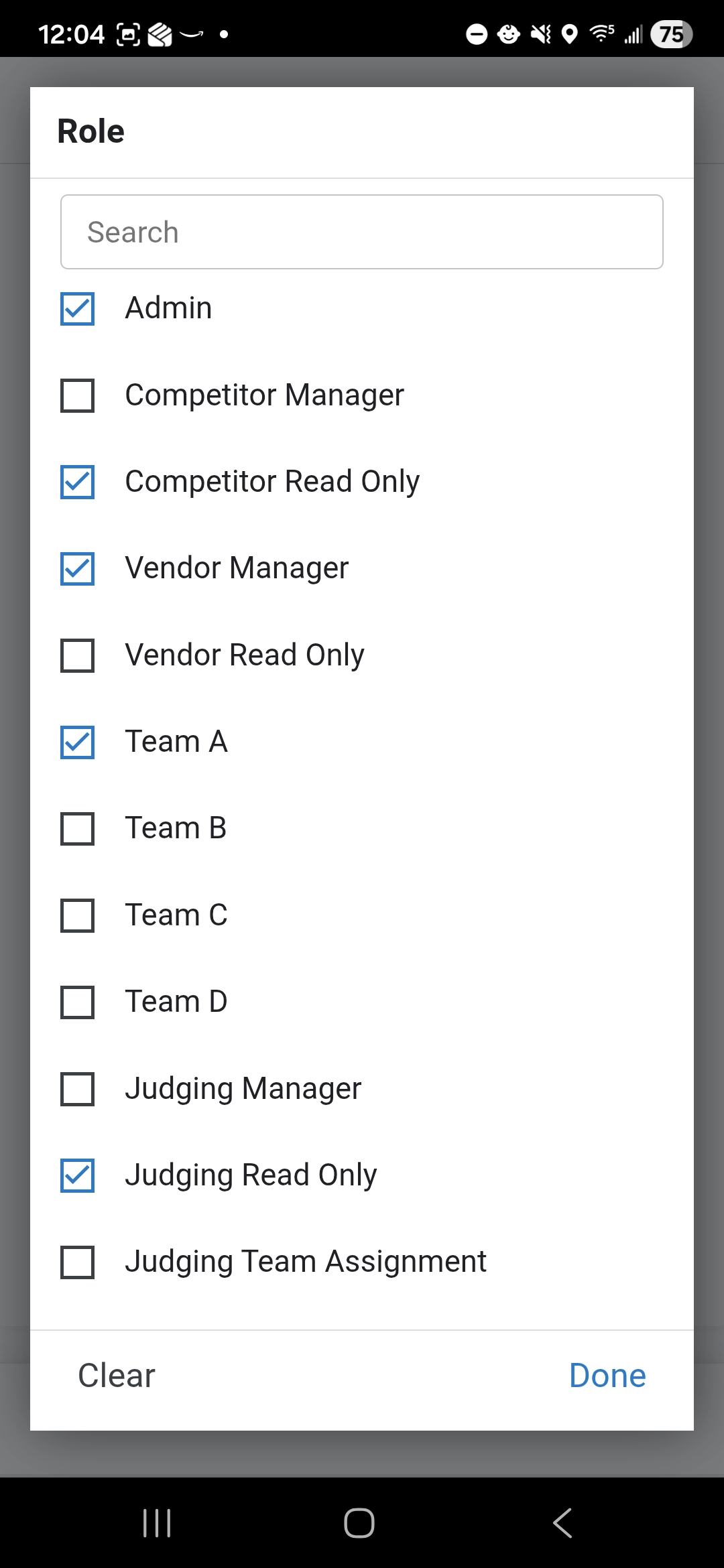
Users can be assigned multiple roles. These roles determine which modules (like Judging or Finance) are visible and editable when they log in.
Available Roles
The following roles can be assigned to users to control their level of access within the application:
| Role | Description |
|---|---|
| Admin | Full access to most modules, settings, and administrative functions. Except Users, Events and Menu. Only use Admin role if you have to. |
| Competitor Manager | Can manage all competitor registrations and check-ins. |
| Competitor Read Only | Can view competitor information but cannot make changes. |
| Vendor Manager | Can manage all vendor registrations. |
| Vendor Read Only | Can view vendor information but cannot make changes. |
| Team A, B, C, D | Assigned to specific judging teams for entering results on the Setup Judging entries for the specified Team. |
| Judging Manager | Can add,edit and delete judging entries, including team and prize assignments. |
| Judging Read Only | Can view judging results but cannot make changes. |
| Judging Team Assignment | Specifically for assigning judging teams to categories. |
| Manage Payments | Can record payment details and verify payments (Finance role). |
| User Manager | Can manage user accounts, permissions, and role assignments. |
| User Read Only | Can view user accounts and roles but cannot modify them. |
| Category Manager | Can configure competition divisions, categories, and styles. |
| Category Read Only | Can view category configurations but cannot modify them. |
| Prize Manager | Can configure the available prizes and awards. |
| Prize Read Only | Can view prize information but cannot modify them. |
| Event Manager | Can define event details, dates, and registration windows. |
| Event Read Only | Can view event details but cannot modify them. |
| Menu Manager | Can configure and manage the application’s navigation menus. |
| Menu Read Only | Can view menu configurations but cannot modify them. |
4. Saving Changes
- Save: Click the Save button to create or update the user.
- Note: The form will close without a confirmation message.
- Cancel: Click the Cancel button to exit without saving.
- Note: No confirmation prompt will appear.