CWCShowcase
Judging
This guide covers the judging workflow. The judging process is handled by multiple teams, each assigned to specific divisions, categories, or styles.
Note: Your team will only have permission to edit the judging entries assigned to you. You will not be able to edit entries belonging to other teams.
1. Accessing the Judging Module
- From the Main Menu, select the Judging module.
-
Select Judging from the submenu.
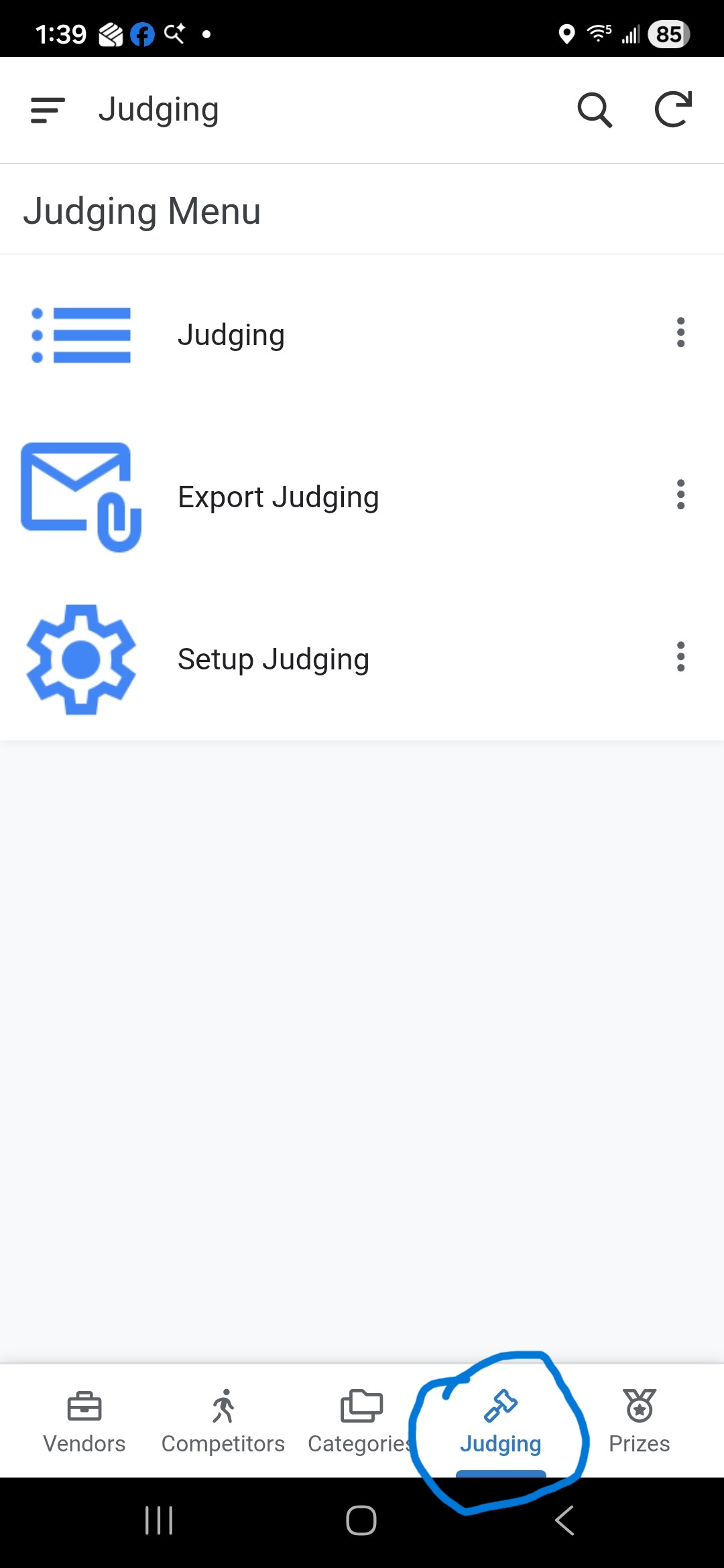
2. Filtering the data
Upon loading, you will see a list of all judging assignments. But you don’t need to see all of the entries so it is usefull to apply some filtering.
-
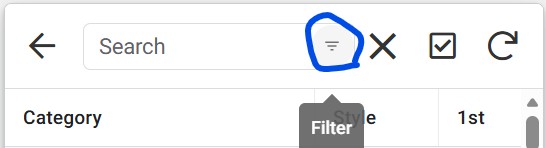
Click on the magnifying glass icon on the top of the list.

-
Click on the upside down triangle in the search textbox.
-
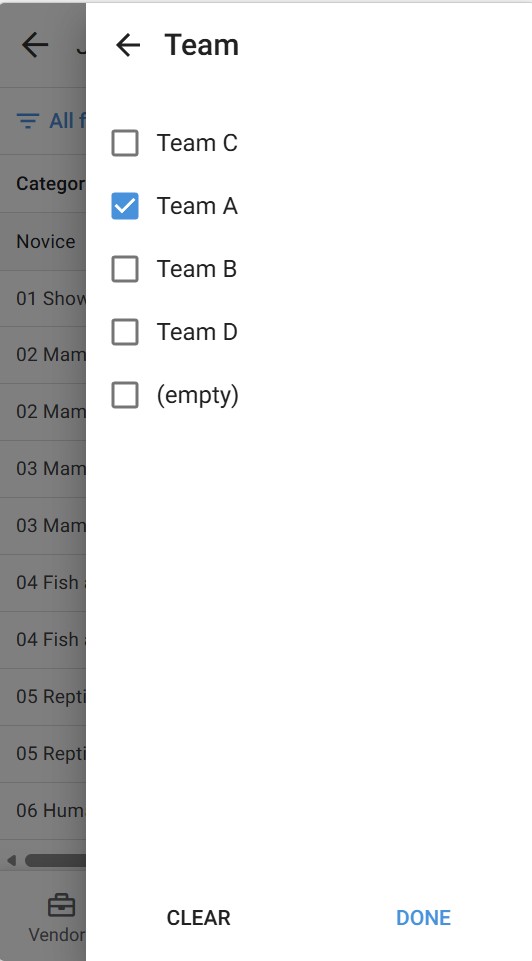
Filter by the Judging Team you are on.
-
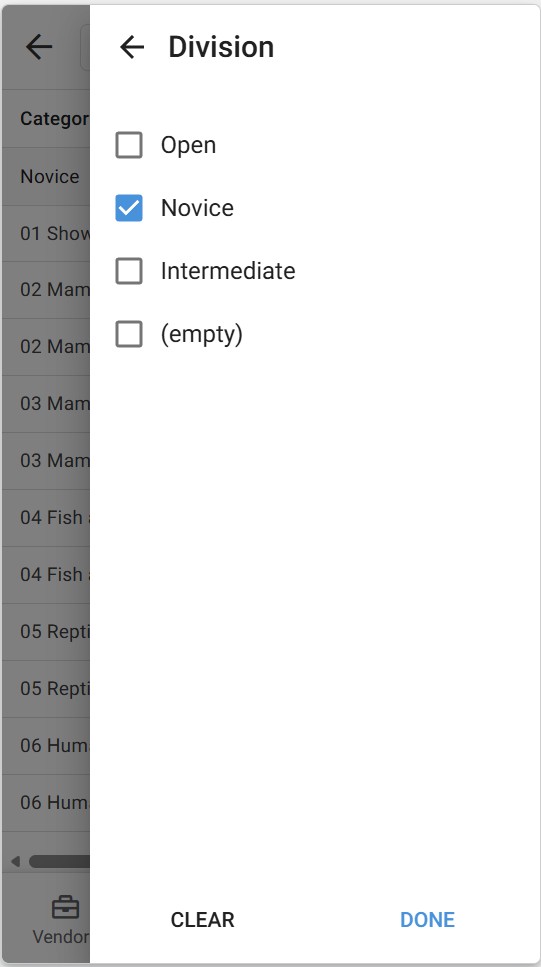
Filter by the Division you are judging.
-
Click DONE to apply the filter.
3a. Selecting a Category
There are two ways to do this: Quick Edit or Normal Edit
Quick Edit
- Locate the specific Division, Category, and Style you are ready to judge.
- Click the Gavel icon in the list and the judging edit form will open up.
Normal Edit
- Locate the specific Division, Category, and Style you are ready to judge.
- Click the Row to open the Detail View.
- Click the Pencil Icon to open the winners form.
4. Entering Winners
One person from the judging team should enter the results for the 1st, 2nd, and 3rd place winners. Note: not all categories have 2nd and 3rd place winners(for example the Best of categories).
For each placement (1st, 2nd, 3rd):
- Competitor: Use the search field to find the winner by Carver ID or Name.
- Entry Number: Enter the specific entry number for the winning piece.
- This is a numeric field. You can type the number directly or use the Up/Down Arrows to increment/decrement the value.
- Note: Only enter placements that have been awarded. If there is no 2nd or 3rd place, leave those fields blank.
5. Finalizing Results
- Save: Click the Save button to record the winners.
- Note: The form will close immediately without a confirmation message.
- Cancel: If you need to exit without saving, click the Cancel button.
- Note: You will not be prompted for confirmation when canceling.