CWCShowcase
Assigning Judging Teams
This guide covers how a Judging Manager or Admin assigns judging teams to competition entries. Assignments can be done individually for a single category or in bulk for multiple categories at once.
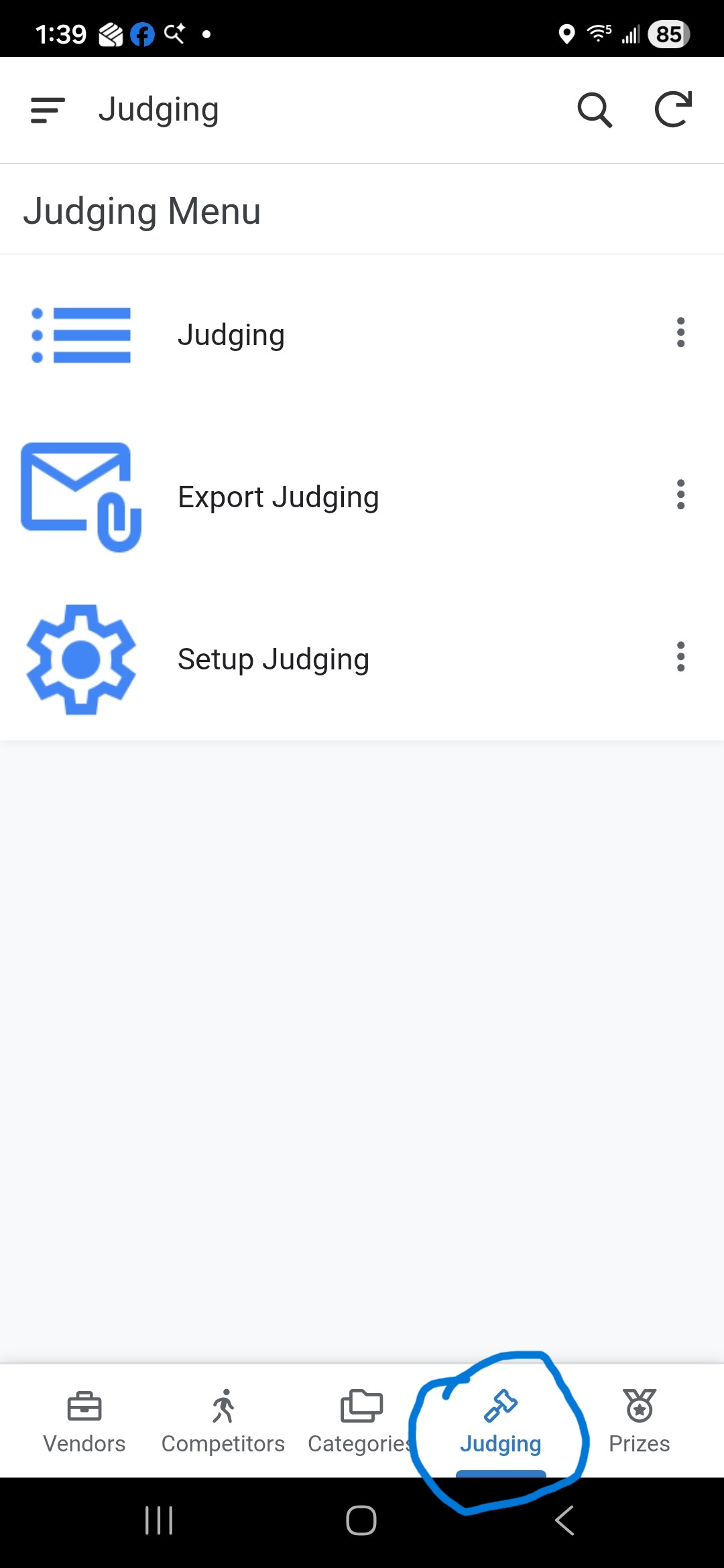
1. Accessing Setup Judging
- From the Main Menu, select the Judging module.
-
Select Setup Judging from the submenu.
2. Bulk Assignment (Multi-Select)
The most efficient way to assign teams is by selecting multiple entries and using the bulk update feature.
- Enter Multi-Select Mode:
- Click the Check Box Icon in the top-right corner of the list.
- Alternatively, perform a Long Press on any entry in the list.
-
Select Entries: Tap the entries you wish to assign to the same team. A checkmark will appear next to each selected item.
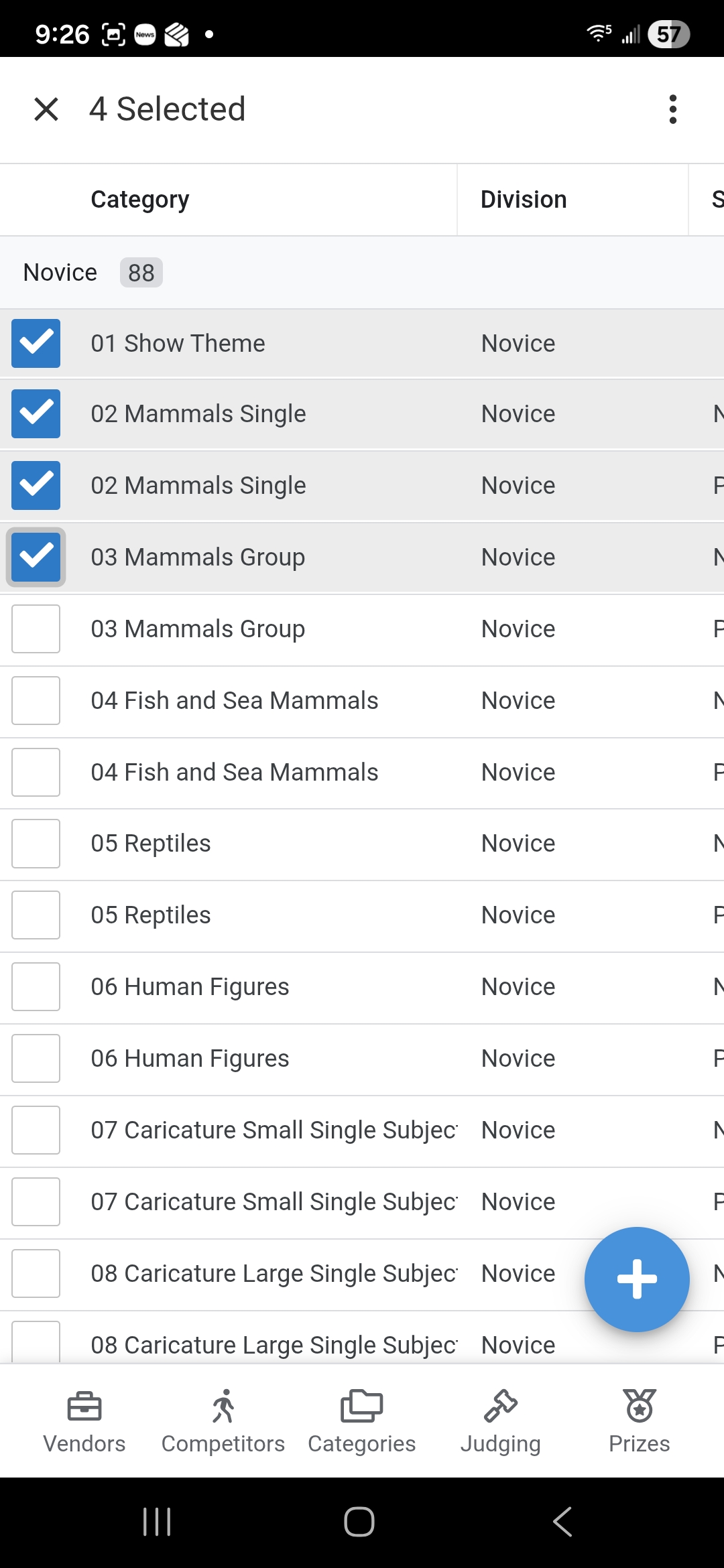
- Open More Options: Click the More Options (⋮ or Menu) icon in the top header.
-
Choose Assign Team A, B, C or D: Select the team you wish to assign to the selected entries.
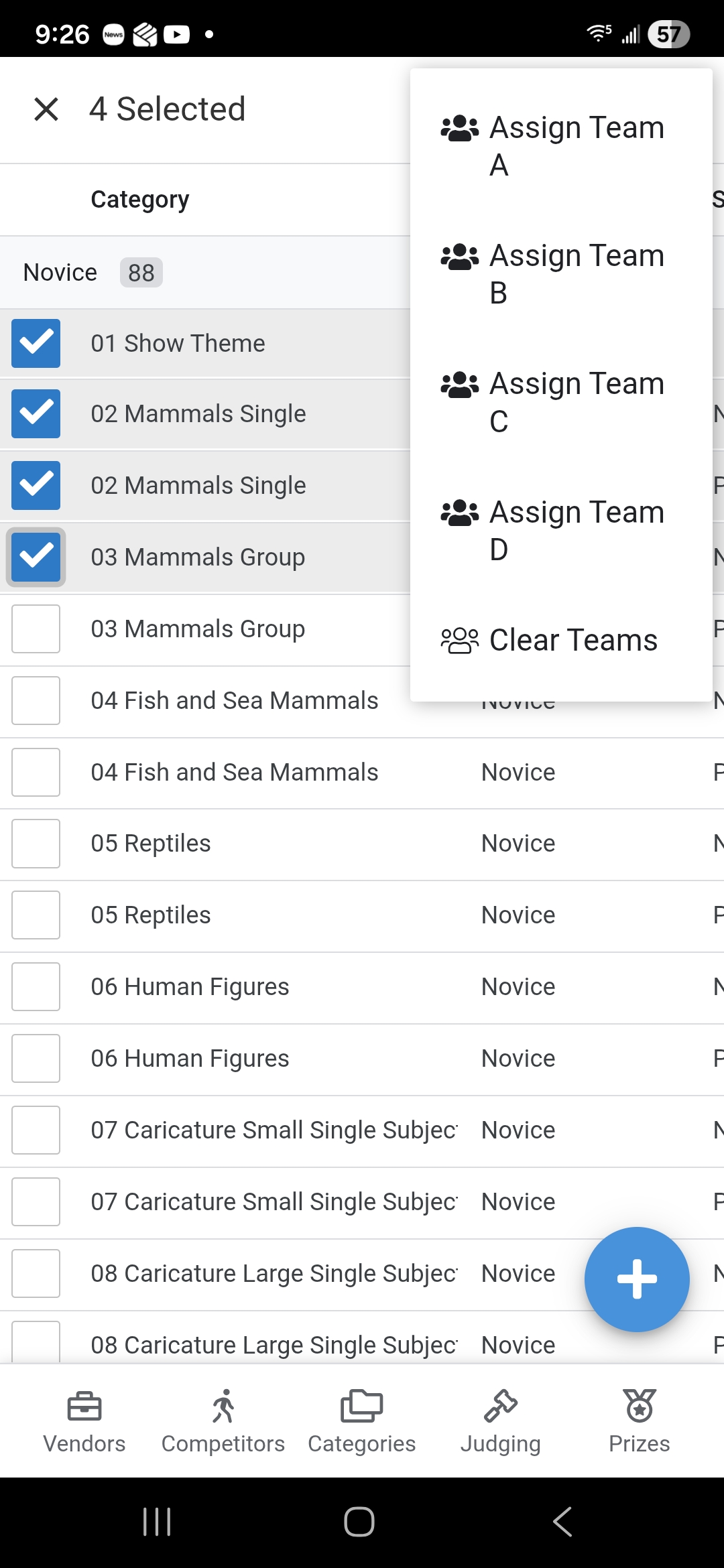
- Alternatively, select Clear Team to remove the tem assignments on the selected records.
- Confirm: A dialog will pop up asking you to confirm the action. Once confirmed the application will update all selected entries with the new team assignment.
3. Individual Assignment (Edit Form)
Use this method if you need to update a single entry or modify specific prize information along with the team assignment.
- Locate the specific Judging Entry in the list.
- Click the Row to open the Detail View.
- Click the Pencil Icon to open the edit form.
- Team Assignment: Find the Team dropdown and select the desired judging team.
- Save: Click the Save button to commit the change.
- Note: The form will close without a confirmation message.
4. Verification
After assigning teams, you can use the Filtering options to view the list by Team. This ensures that no categories have been missed and that the workload is distributed correctly.